Configuring Test Parameters
Quick Summary: Customize test behavior by adjusting parameters like timing, trial counts, difficulty, and more through the web interface.
What You'll Learn
- How to access the parameter configuration interface
- Understanding different parameter types
- Common configuration tasks
- Best practices for parameter adjustment
- Troubleshooting configuration issues
Overview
Every PEBL test includes configurable parameters that control its behavior. Rather than editing test code, you can adjust these settings through a simple web interface. Each study can have different parameter configurations for the same test, allowing you to run multiple variants of experiments.
How Parameters Work
Parameters Are Test-Specific
Each PEBL test defines its own set of parameters that are embedded within the test code itself. There are no universal parameters that apply to all tests. This means:
- The Corsi Block Test has parameters like
maxspan(maximum sequence length) anddotsize(size of blocks) - The Stroop Task has different parameters like
numtrials(number of trials) andisi(inter-stimulus interval) - A parameter that exists in one test may not exist in another test, even if they seem similar
Why it matters: When you configure parameters, you're only changing settings for that specific test. You cannot create "global" parameter settings that apply to multiple different tests.
The Default Parameter Set
When you first add a test to your study, it uses default parameters defined by the test developer. These defaults:
- Are chosen to work well for typical research scenarios
- Are stored in each test's schema file (
.pbl.schema.json) - Are automatically applied when you run a test without custom configuration
- Can be viewed and modified through the Configure interface
You don't need to configure parameters - the defaults are perfectly fine for most studies. Only adjust parameters when you have specific research requirements.
Multiple Parameter Sets (Named Configurations)
You can create multiple named parameter configurations for the same test within a study. This is useful when you want to run different variants of the same test.
Example use cases:
- Easy vs. Hard difficulty versions of the same test
- Short (10 trials) vs. Long (100 trials) versions
- Different timing parameters for different age groups
- Multiple rounds of the same test within a test chain, but with different conditions.
How it works:
- When you first configure a test, you're editing the default parameter set for that study
- You can create additional named parameter sets (e.g., "easy-version", "hard-version")
- Each parameter set gets a unique URL parameter that you can share with different participant groups
- All parameter sets for a test are stored separately, so you can have multiple active configurations
Step-by-Step Guide
Step 1: Access Your Study
- Log in to the PEBL Online Platform
- Go to My Research Studies
- Click on your study name to open the management page
Step 2: Find the Configure Button
On the study management page:
- Navigate to the Individual Tests or Test Chains tab
- Find the test you want to configure
- Click the ⚙️ Configure button next to the test name
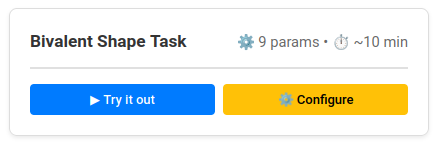
Figure 1: Each test card displays a Configure button (⚙️) that opens the parameter configuration interface. The button is visible when the study is inactive.
Step 3: View Current Parameters
The configuration interface displays:
Header Section:
- Test name and description
- Your study name and token
- Link back to study management
Parameter Form: Each parameter shows:
- Parameter name (e.g.,
dopractice,isi,numtrials) - Description explaining what it does
- Input field with current value
- Type and default information below the input
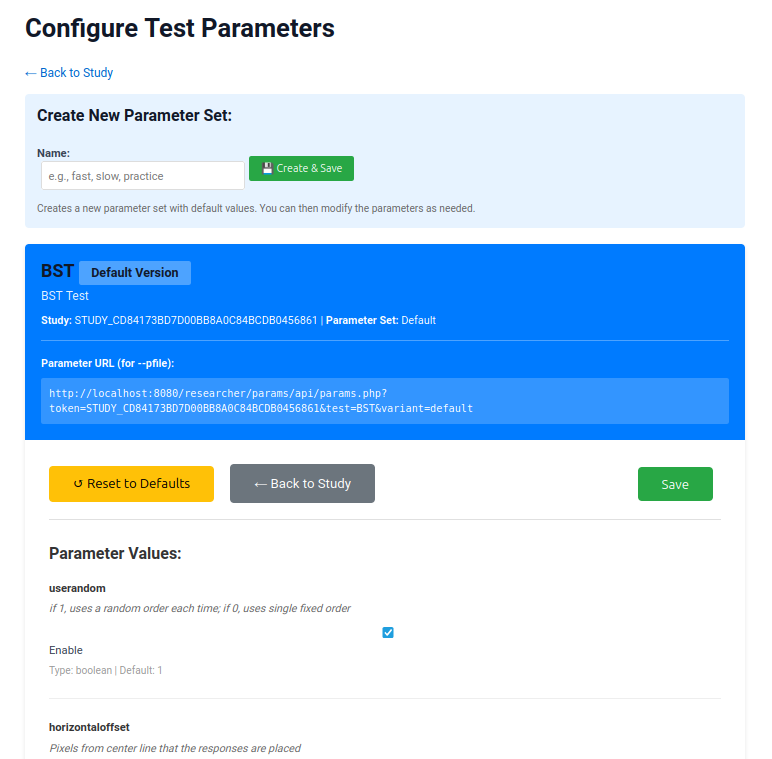
Figure 2: The parameter configuration page displays all configurable parameters for the selected test. Each parameter includes a name, description, input field, and type information. Click "Save Configuration" at the bottom when you're done making changes.
Step 4: Modify Parameters
Adjust parameters based on your research needs:
For Boolean Parameters (checkboxes):
- ☑️ Checked = 1 (enabled/true)
- ☐ Unchecked = 0 (disabled/false)
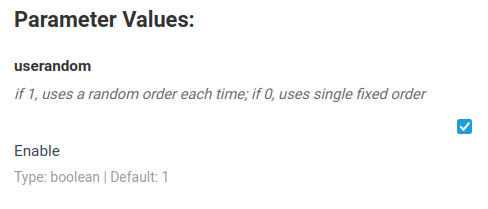
Figure 3: Boolean parameters appear as checkboxes. Check the box to enable (1) or uncheck to disable (0). Common boolean parameters include practice trial settings, feedback options, and randomization flags.
For Integer Parameters (number fields):
- Enter whole numbers only
- Common for: trial counts, timing (milliseconds), display sizes
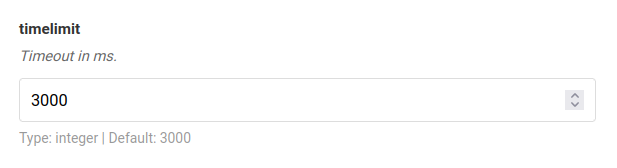
Figure 4: Integer parameters use number input fields for whole numbers. These commonly control trial counts, timing intervals (in milliseconds), display dimensions, and other numeric settings.
For Float Parameters (decimal number fields):
- Enter decimal numbers
- Common for: probabilities, scaling factors, rates
For String Parameters (text fields):
- Enter text values
- Common for: file paths, response keys, labels
Step 5: Save Configuration
- Review all your changes
- Click 💾 Save Configuration at the bottom
- You'll see a success message: "Parameters saved successfully to: {test}.par.json"
- The parameter URL is displayed for reference
Step 6: Test Your Changes
Always test after changing parameters:
- Return to the study management page
- Click ▶ Try it out to run the test with your new settings
- Verify the changes work as expected
- Adjust and re-save if needed
Creating Multiple Parameter Sets
You can create multiple named configurations for the same test to run different variants in the same study.
When to Use Multiple Parameter Sets
Common scenarios:
- Difficulty levels: Create "easy", "medium", and "hard" versions with different trial counts or time limits
- Age groups: Different timing parameters for children vs. adults
- A/B testing: Test two variations of parameters to see which works better
- Pilot vs. Full: Short version for pilot testing, full version for main study
How to Create a Named Parameter Set
- Configure the default parameters first: Follow Steps 1-5 above to set your first configuration
- Save with default name: The first save creates the default parameter set
- Create additional sets:
- Return to the Configure page
- Modify parameters for your variant
- Save with a custom name (e.g., "hard-version", "child-timing", "pilot")
Using Different Parameter Sets
Each named parameter set can be accessed through the test's URL with a special parameter:
Default parameters:
https://your-site.com/runtime/pebl-launcher.html?test=corsi&token=YOUR_TOKENNamed parameter set (e.g., "hard-version"):
https://your-site.com/runtime/pebl-launcher.html?test=corsi&token=YOUR_TOKEN¶ms=hard-versionImportant: The parameter set name must exactly match what you saved (case-sensitive, no spaces recommended).
Managing Multiple Parameter Sets
- View all sets: The Configure page shows which parameter sets exist for the test
- Edit a set: Select the parameter set name and modify values
- Delete a set: Remove unused parameter configurations
- Default fallback: If you don't specify
¶ms=, the default parameter set is always used
Understanding Parameter Types
Boolean (Checkbox)
Purpose: Enable or disable features
Examples:
dopractice- Whether to include practice trialsusebeep- Whether to play audio feedbackfeedback- Whether to show performance feedback
Values:
- Unchecked (0): Feature disabled/false
- Checked (1): Feature enabled/true
Important: Some tests use -1 for special cases (e.g., backward recall direction)
Integer (Number Field)
Purpose: Whole number values for counts and timing
Examples:
isi(Inter-Stimulus Interval) - Time between items (milliseconds)iti(Inter-Trial Interval) - Time between trials (milliseconds)numtrials- Total number of trialstimeout- Maximum response time (milliseconds)
Tips:
- Timing parameters are usually in milliseconds (1000 ms = 1 second)
- Start with defaults and adjust gradually
- Test with pilot participants before finalizing
Float (Decimal Number Field)
Purpose: Decimal values for proportions and rates
Examples:
probability- Event probability (0.0 to 1.0)difficulty- Difficulty scaling factorratio- Proportion or rate values
Tips:
- Probabilities typically range from 0.0 (never) to 1.0 (always)
- Small changes can have large effects on difficulty
String (Text Field)
Purpose: Text values for file paths and keys
Examples:
stimulusfile- Path to stimulus listresponsekeys- Which keys participants presslanguage- Language code for instructions
Tips:
- Be careful with file paths (case-sensitive)
- Response keys are usually single characters
Common Configuration Tasks
Disable Practice Trials
When: Participants are experienced or for repeated testing
Steps:
- Find
dopracticeparameter - Uncheck the checkbox
- Save
Adjust Timing
When: Adapting for different populations (children, elderly, clinical)
Examples:
Increase ISI (more time between stimuli):
isi: 1000 → 1500Increase Timeout (more time to respond):
timeout: 2000 → 4000Decrease ITI (faster pacing):
iti: 1000 → 500Tips:
- Change one timing parameter at a time
- Test the feel with pilot participants
- Document baseline vs. modified values
Modify Trial Counts
When: Adjusting test length or difficulty
Examples:
Increase Trials (more data, longer test):
numtrials: 20 → 30
numreps: 10 → 15
Decrease Practice (shorter warm-up):
practicereps: 5 → 2Tips:
- More trials = better reliability but longer test
- Balance statistical power with participant fatigue
- Consider total battery length (aim for < 45 minutes)
Change Difficulty
When: Adapting for different age groups or clinical populations
Examples:
Make Easier:
- Increase timeout (more time to respond)
- Decrease number of trials
- Reduce stimulus complexity
- Add more practice
Make Harder:
- Decrease timeout (less time to respond)
- Increase number of trials
- Remove practice trials
- Increase difficulty parameter value
Parameter Reference by Test Category
Memory Tests (Corsi, Memory Span, etc.)
Key Parameters:
startlength/endlength- Range of sequence lengths to testtimesperlength- Number of trials at each lengthdirection- Forward (1) or backward (-1) recallisi- Time between items in sequenceiti- Time between trials
Common Modifications:
- Backward spans only: Set
directionto -1 - Shorter test: Reduce
timesperlengthfrom 2 to 1 - Easier: Increase
isifrom 1000 to 1500 ms
Attention Tests (Flanker, ANT, Go/No-Go)
Key Parameters:
numreps- Repetitions per conditionpracticereps- Number of practice trialsfixationtime- Duration of fixation cross (ms)timeout- Maximum response time (ms)iti- Time between trials (ms)
Common Modifications:
- Shorter test: Reduce
numrepsfrom 20 to 15 - More practice: Increase
practicerepsfrom 10 to 20 - Slower pacing: Increase
fixationtimeanditi
Executive Function Tests (WCST, Tower of London)
Key Parameters:
numtrials- Total number of trials/problemsfeedback- Show performance feedback (1/0)timeout- Time limit per trial (ms)difficulty- Problem difficulty level
Common Modifications:
- Remove feedback: Set
feedbackto 0 - More time: Increase
timeout - Fewer problems: Decrease
numtrials
Response Tests (Choice RT, Tapping)
Key Parameters:
numtrials- Number of response trialstimeout- Maximum response time (ms)isi/iti- Timing intervalsfeedback- Performance feedback (1/0)
Common Modifications:
- Quick version: Reduce
numtrials - Longer RSI: Increase
isi
Best Practices
1. Test Before Deploying
Always test parameter changes yourself:
- Run through the entire test
- Verify timing feels appropriate
- Check that instructions match the configuration
- Ensure data uploads correctly
2. Document Your Changes
Keep a research log noting:
Study: Spatial Memory Pilot
Date: 2025-10-31
Test: Corsi Block
Changes:
  - isi: 1000 → 1200 (slower pace for elderly participants)
  - dopractice: 1 → 0 (participants are experienced)
  - timesperlength: 2 → 3 (more data per length)
Reason: Adapting for age 65+ population
3. Change One Thing at a Time
When troubleshooting or optimizing:
- Change a single parameter
- Test the effect
- Document the result
- Repeat
Changing multiple parameters simultaneously makes it hard to identify what caused improvements or problems.
4. Consider the Full Battery
If running multiple tests:
- Calculate total estimated time
- Aim for < 45 minutes total
- Consider participant fatigue effects
- Place easier/shorter tests first
5. Use Consistent Timing
Within a battery:
- Keep ISI/ITI consistent across similar tests
- Use the same timeout values for comparable tasks
- Maintain consistent practice trial counts
This improves the participant experience and data comparability.
6. Keep Defaults Unless Necessary
The default parameters are chosen for general research use:
- Evidence-based timing values
- Appropriate trial counts
- Balanced difficulty
Only change parameters when you have a specific reason (population adaptation, research question, time constraints).
Troubleshooting
Parameters Not Saving
Problem: Click save but see error message
Causes:
- Not logged in (session expired)
- Don't have edit permissions for this study
- Invalid parameter values
Solutions:
- Refresh the page and log in again
- Verify you're the study owner or have edit permissions
- Check that all values are valid for their type (e.g., numbers not text)
- Contact administrator if permissions issue persists
Parameters Not Loading in Test
Problem: Test runs with defaults instead of your custom parameters
Causes:
- Configuration wasn't saved successfully
- Browser cache showing old version
- Token mismatch in URL
Solutions:
- Verify configuration saved (check for success message)
- Hard refresh the test page (Ctrl+F5 or Cmd+Shift+R)
- Check that study token in URL matches your study
- Re-save the configuration
Wrong Values Displayed
Problem: Configuration page shows different values than you saved
Causes:
- Someone else modified the parameters
- Browser showing cached version
- Multiple studies using same test with different configs
Solutions:
- Refresh the page to reload from server
- Check study analytics for recent activity
- Verify you're viewing the correct study's configuration
- Re-save your intended values
Checkbox Always Checked/Unchecked
Problem: Boolean parameter won't change state
Causes:
- JavaScript error on page
- Test requires that parameter to have a specific value
- Browser issue
Solutions:
- Check browser console (F12) for errors
- Try a different browser
- Verify the parameter is actually modifiable (check test documentation)
Advanced: Parameter Files
Behind the scenes, your configurations are stored as JSON files:
Location: data/{YOUR_TOKEN}/{test}.par.json
Example (Corsi test):
{
  "dopractice": 0,
  "direction": 1,
  "useCorsiPoints": 1,
  "startlength": 2,
  "endlength": 9,
  "timesperlength": 3,
  "isi": 1200,
  "iti": 1000,
  "usebeep": 1
}
What this means: Each study (token) has its own directory, so different studies can use different configurations for the same test.
Multiple Variants
Some tests have multiple variants (e.g., Memory Span with "staircase" and "buildup"):
- Each variant has separate parameters
- Separate configuration pages
- Separate parameter files:
{test}-{variant}.par.json
Related Topics
- Test Parameters Reference - Complete list of parameters for each test
- Getting Started - Basic study setup
- Creating Test Chains - Configure parameters for batteries
- Troubleshooting - Solving common problems
Need more help? Contact your platform administrator or consult the PEBL documentation for test-specific questions.